0. Setting Up
Before the first game, your machine needs four things: a Java Development Kit, Git, an editor and the source code. This chapter installs them, builds the finished Mines game and runs it. At the end you know that everything works, and you know where things are.
What you need
| Tool | Why | Version |
|---|---|---|
| JDK (Java Development Kit) | compiles and runs the games | 25 |
| Git | fetches the source code, keeps your changes | any recent |
| An IDE | editing, running, debugging | IntelliJ IDEA, VS Code with the Java extensions, or Eclipse |
| Gradle | builds the projects | nothing to install: each project brings its own Gradle wrapper |
The games are developed on Linux and run on the amadeOS desktop, but everything in this book also works on any other Linux, on Windows and on macOS.
Installing the JDK and Git
Install the Temurin JDK 25 from adoptium.net (tick Set JAVA_HOME in the installer) and Git for Windows from git-scm.com.
Check the result in a new terminal:
The exact numbers differ; the Java version must start with 25.
Behind the scenes: toolchains
The build files ask Gradle for a Java 25 toolchain. If your default java is older, Gradle looks for an installed JDK 25 and uses it for compiling, testing and running. You only need one JDK 25 somewhere on the machine.
Getting the source code
The engine, the shared amadeOS library and every game live in their own Git repositories. Clone them next to each other into one directory:
mkdir -p ~/projects/amade && cd ~/projects/amade
git clone https://github.com/datazuul/amade-commons.git
git clone https://github.com/datazuul/amade-game-engine.git
git clone https://github.com/datazuul/amade-mines-game.git
~/projects/amade/
├── amade-commons/        shared library of all amadeOS programs: theme, start-up, texts
├── amade-game-engine/    the game engine, and this book in docs/handbook
└── amade-mines-game/     the first game
Why next to each other? A game declares the engine as a normal dependency, which Gradle would download from JitPack. But each game's settings.gradle also says: if the engine is checked out next to me, build that instead.
rootProject.name = 'amade-mines-game'

// Develop against local checkouts next to this one; without them, the versions from JitPack given in
// build.gradle are used.
if (file('../amade-game-engine/settings.gradle').exists()) {
    includeBuild '../amade-game-engine'
}
Gradle calls this a composite build. When you change the engine, the game sees the change at once, without publishing anything. The engine does the same with amade-commons.
Building and running Mines
The first run takes a while: the wrapper downloads Gradle itself, then the libraries. Later runs start in seconds. A window opens:
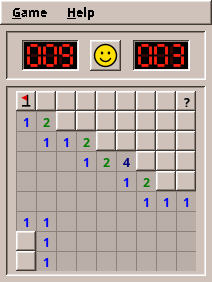
Play a round. Left click opens a cell, right click puts a flag on it. Close the window when you are done.
Now run the tests:
A few tests open real windows. On a machine without a screen (a server, a CI build) run them inside a virtual X server:
The test report is in build/reports/tests/test/index.html: open it in a browser to see every test and its result.
Tip
./gradlew tasks lists everything the build can do. The ones you will use most: run, test, jar (a single runnable jar in build/libs/) and deb (a Debian package).
Opening the project in an IDE
Open the folder amade-mines-game in your IDE and let it import it as a Gradle project. The IDE then reads build.gradle, finds the engine and amade-commons next door and knows every class.
File → Open, choose the folder. IntelliJ recognises build.gradle and imports it. Set Settings → Build Tools → Gradle → Gradle JVM to Java 25 if it is not chosen.
Install the Extension Pack for Java and the Gradle for Java extension, then File → Open Folder.
File → Import → Gradle → Existing Gradle Project.
To start the game from the IDE, run the class eu.amadeos.games.mines.bootstrap.AmadeMinesApplication.
Pitfall: \"non-project file\"
If your editor marks every import red and calls the file a non-project file, the folder was opened as plain files, not imported as a Gradle project. Import it as shown above; the errors disappear. They never meant that the code is wrong: ./gradlew build compiles it fine.
Where a game keeps its files
amadeOS programs follow the XDG Base Directory specification. Two environment variables decide where files go, with defaults when they are not set, which is the usual case:
| What | Variable | Default | Mines uses |
|---|---|---|---|
| Settings | $XDG_CONFIG_HOME |
~/.config |
~/.config/amadeos/mines/mines.properties |
| Data | $XDG_DATA_HOME |
~/.local/share |
~/.local/share/amadeos/games/mines/*.scores |
All of them are plain text files. Open one in an editor: you will see exactly what the game saved.
Installing a game on amadeOS
On amadeOS and other Debian systems a game is installed as a Debian package:
The game then appears in the desktop's menu under Games, and amade-mines-game starts it from a terminal. sudo apt remove amade-mines-game removes it again.
When something goes wrong
| Symptom | Cause and fix |
|---|---|
Cannot find a Java installation ... matching languageVersion=25 |
No JDK 25 installed. Install it as above. |
Could not resolve com.github.datazuul:amade-game-engine |
The engine is not checked out next to the game and JitPack cannot be reached. Clone amade-game-engine next to the game. |
| Window tests fail with odd screen sizes | An old virtual X server is still running on that display. Find it with pgrep -a Xvfb and end it. |
| Everything is tiny on a high-resolution screen | Start with -Dsun.java2d.uiScale=2, e.g. JAVA_TOOL_OPTIONS=-Dsun.java2d.uiScale=2 ./gradlew run. |
| The game starts in the wrong language | amadeOS programs follow the desktop's language, else LANG. Try LANG=en_US.UTF-8 ./gradlew run. |
Everything works? Then the next chapter explains why these games have their own engine at all, instead of using one of the existing Java game libraries.